Digital signage in a browser tab. Nothing to install.
The web player is the same player the Android app wraps. Open it in any current browser, pair it with a six-character code, and the screen plays whatever you publish — the fastest way to see FizzSigns on a real screen.
A web page that behaves like a player
Browsers were built for people who click, not for screens that run for months with nobody near them. The player does the work that makes up the difference.
Plays offline
Every item in the playlist is downloaded into the browser's cache before it is due on screen. A dropped connection delays changes; it does not blank the screen.
Starts where it left off
The last playlist is stored in the browser, so after a restart the screen is playing again before the network is even back.
Holds the screen awake
The player asks the browser to keep the display on, and asks again whenever the browser lets go, so a screen saver does not take over mid-loop.
Notices the network
Apps that need a live connection — a web page, a YouTube video — step aside the moment the network drops and come back when it returns, without a reload.
Keeps working hours
Outside a screen's scheduled hours the player shows black instead of content, and keeps downloading anything published overnight, so it is ready when the hours begin.
The address is the screen
Once paired, the address bar holds the screen's own link. Open it anywhere and that browser becomes the screen again, even one whose storage was wiped — so treat the link like a key.
Three steps, no installer
Open the player
Go to player.fizzsigns.com in Chrome, Edge, Safari or Firefox. It shows a six-character pairing code.
Pair it
In the dashboard, choose Add screen, type the code, name the screen and give it a playlist.
Go full-screen
Bookmark the address the player now shows — that link reconnects this screen — then switch the browser to full-screen, or start it in kiosk mode.
What the screen shows
The first time it opens, the player shows a six-character code. Type it into the dashboard, give the screen a playlist, and it starts playing.
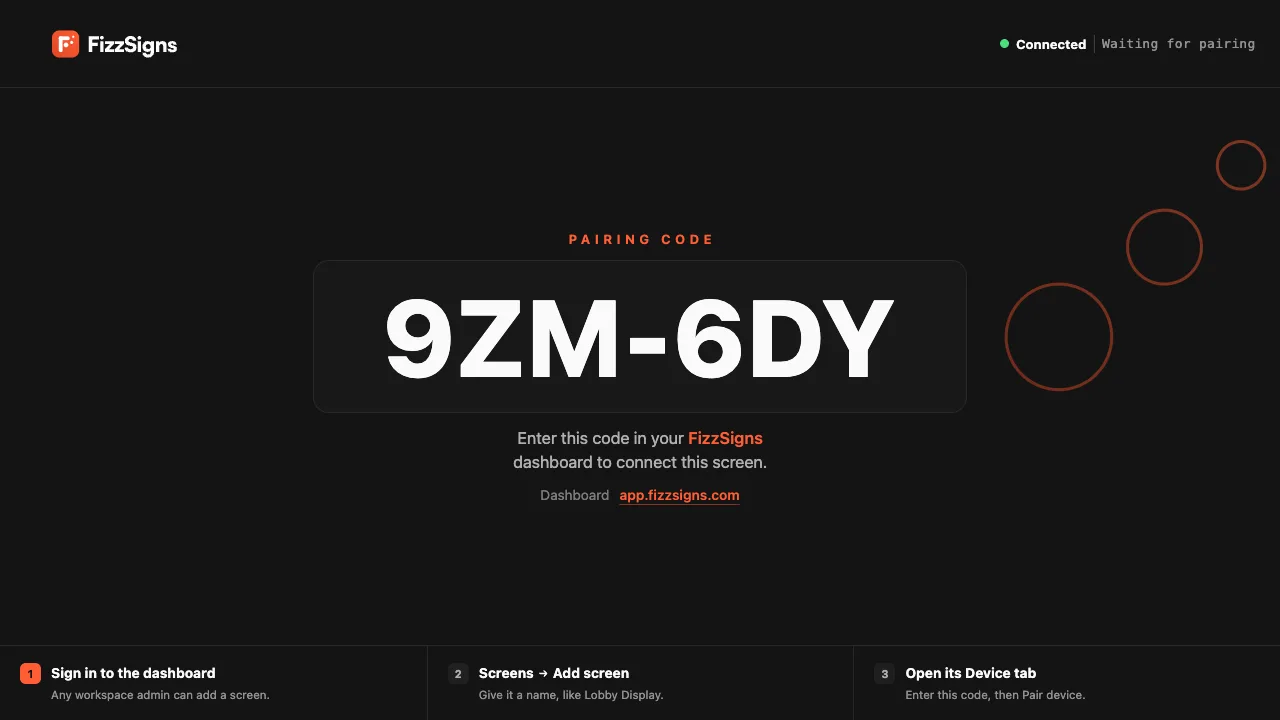
First start: the code, and the three steps to use it. 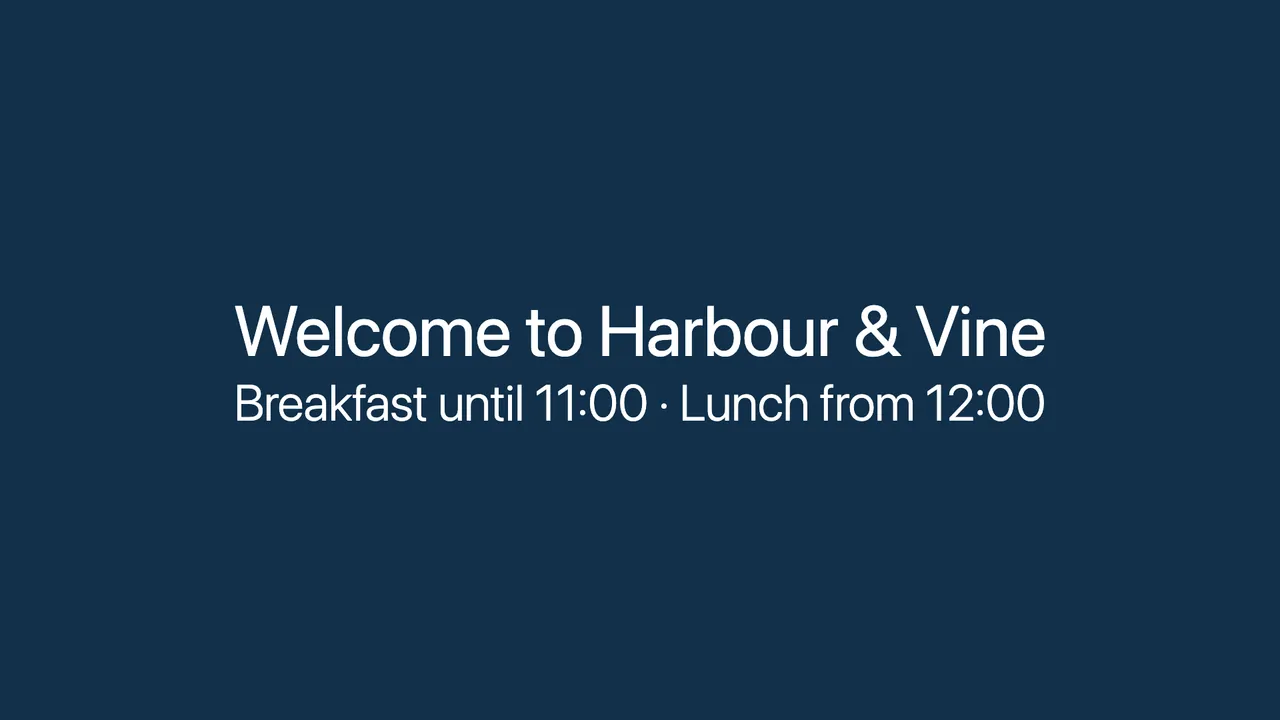
Paired: the playlist plays full screen, here a welcome message from a demo organisation.
What the browser needs
The player is a modern web app, not a heavy one. What it cannot do without is storage: the offline cache is what keeps a screen playing through an outage.
- A current version of Chrome, Edge, Safari or Firefox
- A normal browser profile — not a private or guest window
- Free disk space for the playlist's media, which is cached rather than streamed
- Outbound HTTPS to the internet; no open ports, no VPN
- A computer set never to sleep while the player is on screen
Running a browser unattended
A browser left on its own will eventually ask a question of someone who is not there. These settings take the questions away.
Kiosk mode
Chrome and Edge both take a --kiosk switch that opens a page full-screen, with no address bar and no tabs to close by accident. Start the browser with it, pointed at the screen's saved address.
Sound without a click
Browsers mute video on a page nobody has clicked. For a screen nobody touches, allow autoplay for the player: in Chrome with the --autoplay-policy=no-user-gesture-required switch, in Safari per website under Settings → Websites → Auto-Play.
Not a private window
A private or guest window discards its cache when it closes, so the screen downloads everything again and cannot play offline. The saved address still reconnects it — but use a normal profile.
Start with the computer
Set the computer to log in by itself and open the browser at login, on the screen's address. From there the player looks after itself.
Web player questions
Is the web player free?
Opening it is free, and it is the same player every plan uses. Once paired it counts as one screen on your plan — €14 a month after the 21-day trial — whichever device it runs on.
Will it run in a smart TV's own browser?
We do not promise it. TV browsers differ widely in how they cache media, keep the screen on and survive a restart, and none has been qualified. A small Android box or a computer is the dependable route.
Does the tab have to stay in front?
Yes. Browsers slow down tabs in the background and let go of the screen, so give the player its own window, full-screen, with nothing on top of it.
How is it different from the Android app?
Not in what the screen plays — the Android app runs this same player inside it. The app adds what a browser cannot do on its own: holding the screen, starting at boot, repairing a frozen page and fetching its own updates.
Other ways to run a screen
- AndroidOne APK for TV boxes, sticks, displays and tablets — full-screen, autostart and updates it fetches itself.
- WindowsAn app for the PC behind the screen: full-screen, started with Windows, restarted if it freezes, and updated by itself.
- Mac (browser)A Mac mini or iMac as a signage player, with the four macOS settings that keep it running unattended.
- What hardware to buyWhat to look for in a box or a display, and what is not worth paying for.
From the blog
- Cloud-based digital signage: how it works and what to ask a vendorHow cloud-based digital signage works, how it compares with on-premise, what a screen does when the internet drops, and what to ask on security and GDPR.
- How to set up digital signage: from a blank TV to a playing screenEight steps from a blank TV to a screen that runs itself: pick the display and player, install, pair with a code, build a playlist, set hours, test.
- Raspberry Pi digital signage: when it is worth the effortWhen a Raspberry Pi makes sense for signage, what it costs in time (power, SD cards, heat, updates) and how it compares with an Android box.
Three steps between a blank TV and a live one.
No server to run, no licence per seat, nothing to install on your network. A display, a power socket and an internet connection.