Download the digital signage player for your screen.
Pick the one that matches the device in front of you. Every option pairs the same way, with a six-character code, and every option is the same player.
Android
The APK for TV boxes, sticks, tablets and Android displays. Side-load it, allow installation from unknown sources when the device asks, and open it.
Android 8 or newerWindows
The app for a PC behind a screen. It runs full-screen, starts with Windows, restarts itself if it freezes and installs its own updates.
Installer link unavailable right now — the browser runs it meanwhileBrowser
Open the player in any current browser and go full-screen. Nothing to install, and the fastest way to see the product working on a screen you already have.
Chrome, Edge, Safari or FirefoxMac
A Mac mini behind a screen is a quiet, dependable player. Open the web player, go full-screen, and have the browser open it at login.
A current Chrome or SafariAfter you install it
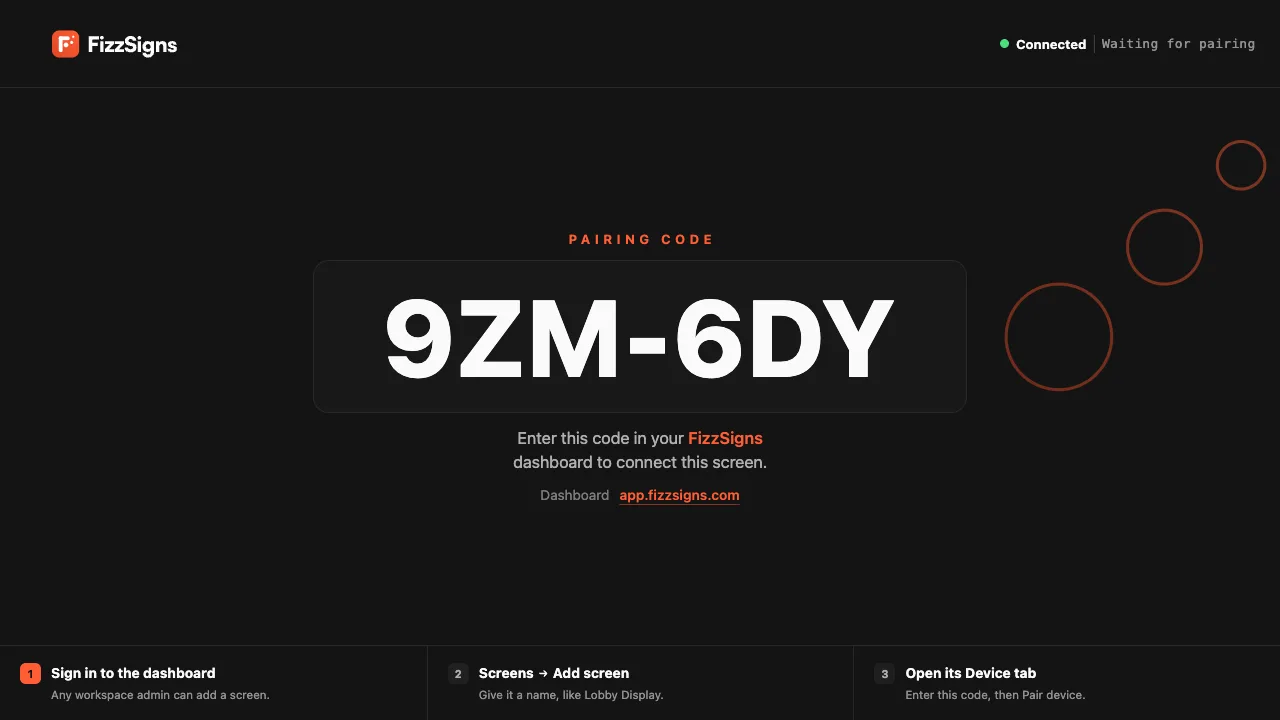
- 1Open the player. It shows a six-character code.
- 2In the dashboard, choose Add screen and type the code.
- 3Name the screen and assign it a playlist.
- 4The code expires once used — a photo of it is not an account.
What the Android player does once it is on the box
The APK is a thin native shell around the same web player everything else runs. It exists for the jobs a browser tab cannot do on a wall-mounted screen.
Holds the screen
Full-screen, no status bar, and Back never leaves the player; once you allow it in the service menu, it takes the screen back from Home too. A technician gets out with five quick presses of Back.
Starts by itself
Once auto-recovery is allowed in its service menu, it comes back after a reboot, after a power cut and after its own update, without anybody touching the box, and a supervisor service restarts the player if it ever goes missing.
Recovers a broken page
If the page stops responding the shell reloads it, then rebuilds it, then restarts the app, and finally falls back to an offline page that keeps retrying. A frozen screen fixes itself instead of waiting for Monday.
Updates itself
The shell checks the release channel, verifies the download against its published hash, and installs it — silently where Android allows it; otherwise the dashboard marks the screen and the update is installed from the player’s service menu. You never have to re-side-load an APK to stay current.
What each option needs
- AndroidAndroid 8.0 or newer, 2 GB RAM or more, an HDMI output. Wired ethernet preferred over Wi-Fi.
- BrowserA current version of Chrome, Edge, Safari or Firefox, with local storage available for the offline cache.
- WindowsWindows 10 or 11, 64-bit, with WebView2 — part of Windows 11, fetched by the installer on Windows 10. A Windows account that signs in by itself.
- macOSAny Mac with a current Chrome or Safari. Set full-screen, and have the browser open the player at login.
- NetworkOutbound HTTPS. Media downloads once and is cached, so bandwidth matters at install time rather than all day.
Installing and updating
Android says the file is from an unknown source.
That is expected for an APK that does not come from the Play Store. Allow installation for the app you are installing from — usually the file manager or the browser — and the install continues. On a TV box the setting is in Security or in Apps, depending on the vendor.
How does the player update itself?
The Android shell polls the release channel, downloads the new build, checks it against the hash published in the channel and installs it. Where the device allows a silent install it happens unattended; where it does not, the dashboard marks the screen and someone installs the update from the player’s service menu. The Windows app checks its own channel, verifies the signature and installs the update for its account, and goes back to the previous version if the new one does not start healthy. The web player updates the moment it reloads.
Can I install it on many devices at once?
Yes — the APK and the Windows installer are one file each and the same on every screen, and the Windows one also installs silently with /S. Each device pairs with its own code, so fleet rollout is install once, then pair each screen with the code it shows you.
Which one should I run for a trial?
The browser. It pairs in the time it takes to read this, on a laptop you already have, and it shows the same playlist the boxes will show later. Order hardware once you know what you want it to do.
From the blog
- Digital signage player: the five kinds and the specs that matterWhat a digital signage player does, the five kinds (box, stick, computer, built-in, browser), the specs that matter and what to avoid buying.
- Android TV box for digital signage: what to buy and what to skipWhat an Android TV box for digital signage needs, what to skip, how the app holds the screen in kiosk mode, and how to test one before buying twenty.
- Smart TV digital signage: which TVs can run it on their ownWhich smart TVs run digital signage by themselves, when a Samsung or LG needs an Android box, and where a USB-stick slideshow stops being enough.
Three steps between a blank TV and a live one.
No server to run, no licence per seat, nothing to install on your network. A display, a power socket and an internet connection.