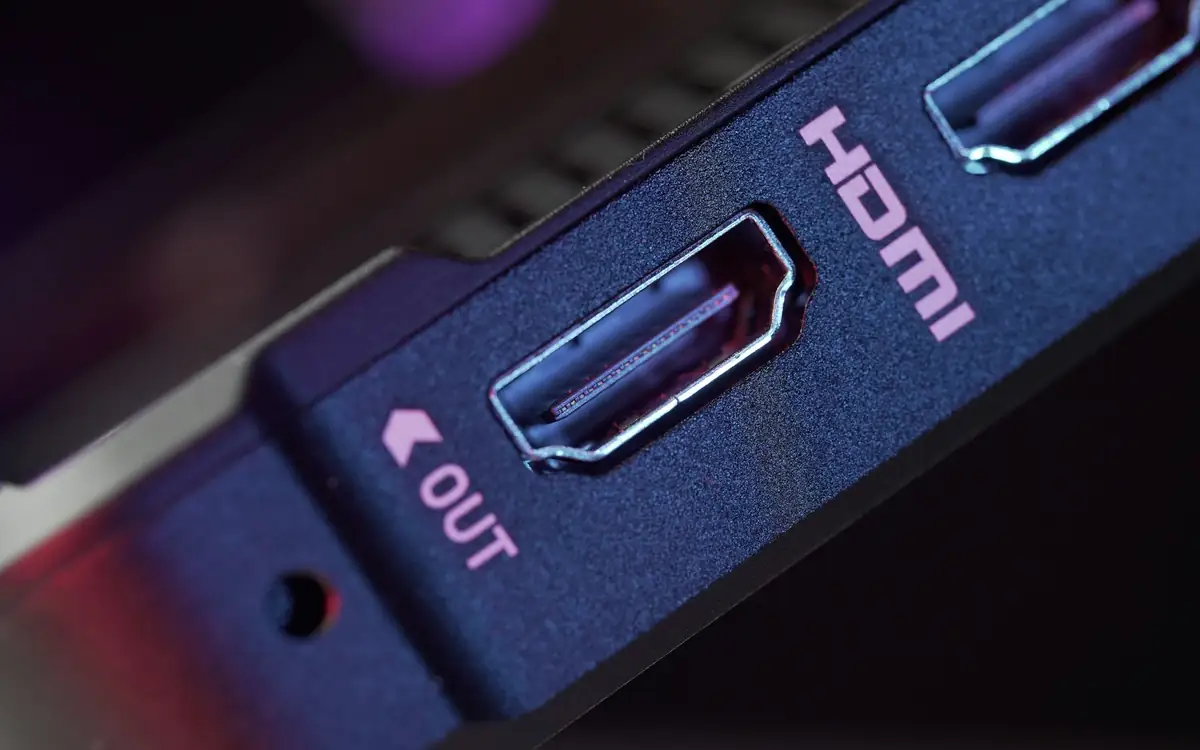
An Android TV box for digital signage needs Android 8 or newer, 2 GB of RAM or more, an HDMI output and an ethernet port, and it has to switch itself back on after a power cut. Product listings often leave that last point out, and it is the one that matters most on a wall. A box that does the job typically costs somewhere between €40 and €120. There is no need to pay extra for a "signage" label.
The rest of the work is avoiding the cheap boxes that fail slowly, knowing what the app holds on its own and what two switches in its service menu add, and testing one box properly before you buy the other nineteen. We do not sell hardware, and we do not recommend specific models, because we have not tested enough of them to stand behind one. What follows is what to check yourself.
Why an Android TV box is the usual choice
It is small enough to hide behind the screen and cheap enough to keep a spare in the drawer. Any electronics shop has one, so a replacement takes an afternoon rather than a support ticket.
It also keeps the player separate from the display. Whatever the TV runs, whether that is Tizen, webOS or nothing smart at all, the box brings its own Android. And Android lets an app do the things a sign needs: stay full-screen and, once a person allows it in the app's service menu, start at boot and install its own updates. A browser tab on a TV cannot do those things by itself.
What to look for in an Android TV box for digital signage
Android 8 or newer
The FizzSigns app needs Android 8.0 or later. "Android TV" in a product name tells you the kind of box, not the version. When the box arrives, check the version under Settings → About on the box itself, before the listing's return window closes.
2 GB of RAM or more
Memory is where the cheapest boxes save money. With too little, a box plays video smoothly on the shop's demo loop and not for a full day on your wall. Treat 2 GB as the floor. More does no harm, but a box with 4 GB is not twice as good at showing a menu.
Storage with room to spare
The player downloads media once and keeps it on the box. That is what lets it play offline, and it is why a large video does not download again on every loop. It also means your largest playlist has to fit on the box, with room left for Android's own updates. If your content is mostly video, look at the free space after setup, not the figure printed on the packaging.
Wired ethernet
The box sits behind a metal-backed TV, often next to a fridge, a coffee machine or a wall full of stock. Wi-Fi works well until the day the room fills up or someone moves the access point. An ethernet port and a cable run are the cheapest reliability you will buy. If it has to be Wi-Fi, use 5 GHz and put the access point in sight of the screen. Bandwidth needs are modest, because media is downloaded once and then played from the cache.
Automatic power-on after a power cut
This is the one to test yourself, because listings often do not mention it. When the power comes back, the box should boot by itself, and, with auto-recovery switched on in its service menu (more on that below), the player should come up without anyone touching a remote. Some boxes go into standby instead and wait for a button press.
Check the display too. A box that boots perfectly into a TV that stays off is still a black screen. Look for an auto power-on or power-restore setting in the display's own menus, and test that as well.
Cooling
Signage is a light workload run for a very long time, often in a warm room, often pressed against the back of a TV. Give the box some air and keep it out of sealed cabinets. After a full day of playback, touch it where it will actually be mounted. If it is too hot to hold comfortably, it will be worse in August.
What does not matter much
- 4K output, if nobody stands closer than about four metres. Full HD is right for most rooms.
- Google Play. The FizzSigns app is a signed APK downloaded from our site, not from a store, so what the box needs is permission to install an APK, not a particular app store.
- Bundled extras: media centre apps, game launchers, remote-control apps for your phone.
- A "signage-branded" box at three times the price of the same chipset.
One thing to avoid outright: anything that needs a vendor engineer to re-image it. You want a box you can reset and set up yourself.
Kiosk mode on an Android box: what the app holds
"Kiosk mode" means the screen shows the player and nothing else: no status bar, no home screen, no accidental way out. The FizzSigns app does this without locking Android down. It holds the screen itself, and two switches in its service menu decide how far it looks after itself.
Android does have a harder lock, lock task mode, but only the device's owner can switch it on: an app made owner at a factory reset, or a device-management (MDM) system. Some TV boxes cannot do it at all, and the FizzSigns app does not use it.
What it holds as soon as it opens
The player takes the whole screen, hides the system bars and keeps the display on. The Back button never leaves it. None of that needs setting up: open the app and it starts full-screen.
Two switches, once per box
Press Up on the remote to open the player's service menu. Switch on Allow auto-recovery under Recovery and, on Android 12 and newer, Allow automatic updates under Software update. Each one opens an Android settings screen where you switch FizzSigns on, because Android lets only a person grant them. Here is what each one buys:
- Allow auto-recovery is what lets a box look after itself. The player takes the screen back when someone presses Home, opens at power-on, after a power cut and after its own updates, and a supervisor service brings it back if it ever disappears. Without it, none of this can be counted on; the player starts full-screen when someone opens it.
- Allow automatic updates lets updates install silently, with nobody at the screen. That works on Android 12 and newer, together with auto-recovery, so the new version can put itself back on screen; even then, Android or Google Play Protect can still ask first. Without the switch, on an older Android, or when that happens, the dashboard marks the screen when an update is waiting, and someone installs it from the service menu.
Some boxes leave out the Android settings screen a switch needs. The service menu then shows Not available here in its place: without auto-recovery, that box cannot bring the player back by itself, and without automatic updates, someone confirms every update at the screen.
If you would like a hand with the first box, get in touch and we will walk you through it.
How a technician gets out
Five quick presses of Back bring up a dialog for closing the player, and that works even when the page will not load. Close Application in the service menu does the same. Either way, auto-recovery stands down until the box restarts or someone opens the player again, so the player does not jump back while someone works on the box. With auto-recovery on, it is back after the next restart.
A box behind a TV, or a box the public can reach
- A box behind a TV, out of reach: switch on both, and it runs with nobody near it. Power cuts and crashes are covered, and on Android 12 and newer usually updates too; nobody is pressing buttons.
- A screen the public can reach: a box on an open shelf with the remote beside it, a waiting room, a school corridor. With auto-recovery on, pressing Home is undone: the player takes the screen back by itself. The remote is another matter. Its Up button opens the service menu, which has no PIN, and from there the player can be closed or deactivated; five quick presses of Back close it too. Each of these asks first, with Cancel selected, but anyone can confirm. Keep the remote in a drawer or with staff, and the box out of reach.
- A fleet where a trip to a screen costs real time: both switches on every box, and boxes on Android 12 or newer, because that is where updates can install silently.
What the FizzSigns app does once it is on the box
The APK is a thin native shell around the same web player every FizzSigns screen runs. On the box it adds the jobs a browser tab cannot do:
- Once auto-recovery is allowed in its service menu, it starts at boot and after a power cut, and a supervisor service brings the player back if it ever disappears.
- It watches the page. If the page freezes, the app reloads it, then rebuilds it, then (with auto-recovery allowed) restarts itself, and as a last step shows an offline page that keeps retrying.
- It fetches its own updates from our release channel and checks every download against a published SHA-256 hash before installing. With both switches on, on Android 12 and newer, it usually installs them silently; otherwise, or if Android or Google Play Protect still asks, the dashboard marks the screen and the update is installed from the service menu.
- It keeps the playlist, the screen's working hours and the media on the box, so a dropped connection delays changes rather than blanking the screen.
The Android download page has the APK and the full requirements.
Test one box before you buy twenty
Holding the screen, starting at boot and silent installs all rely on parts of Android that manufacturers change. The same app can behave differently on two boxes that run the same Android version. We have walked the FizzSigns Android app end to end on one Android TV running Android 14. That is a baseline, not a certificate for every box on sale. So test the model you intend to buy, on your own network, with your own content. Most of the test is waiting:
- Install and pair. Install the APK, open it, and type the six-character code it shows into the dashboard under Add screen. The setup guide covers this step by step.
- Use real content. Build a playlist with your actual videos and at least one app, not a single test image.
- Switch on the two switches. Press Up on the remote, and in the service menu switch on Allow auto-recovery and, on Android 12 and newer, Allow automatic updates. If the menu shows Not available here in place of Allow auto-recovery, that model cannot bring itself back: choose another. From here on you are testing the box the way it will run on the wall.
- Pull the plug. With content playing, unplug the box, plug it back in, and touch nothing. Content should come back on its own. If you are left looking at a home screen or a standby light, you have your answer.
- Pull the network. Unplug the ethernet cable or switch off the Wi-Fi. The screen should keep playing. Publish a change while it is offline, reconnect, and watch the change arrive.
- Try to knock it off the screen. Press Home, then pick up the remote and try to leave the player the way a bored customer would. Each time, the player should take the screen back by itself. If the box stays on its home screen, check that auto-recovery is on; if it is, you have your answer. The technician's way out, five quick presses of Back or Close Application, keeps the player closed until the box restarts or someone opens it again. That is on purpose.
- Leave it running. Give it a few days, including nights and a weekend. Each morning, check the dashboard for the screen's last-seen time and player version.
- Feel it. After a full day, check how warm the box is in the place it will be mounted.
If it passes, buy the rest as the same model from the same seller, and do it soon. Boxes sold under one name are sometimes changed inside between batches, so if a later delivery looks or behaves differently, test one again before it goes up.
Where to start
If you have not chosen a box yet, start without one. Open the web player in a browser on a laptop connected to the TV, pair it, and build the playlist. Then buy one box, run the test above during the 21-day trial, and only then order the rest.
For the other ways to run a screen, including a TV with Android TV built in that makes the box unnecessary, see our guide to digital signage players. If you were weighing up a stick from Amazon instead, our article on Fire TV sticks for signage explains why we do not promise them. And our page on digital signage hardware compares the box with an Android display, a PC with the Windows app and a browser, with what each costs, and has the table for choosing the screen size.