Digital signage on an Android TV box, display or tablet.
One APK turns an Android device into a signage player that holds the screen full-screen, starts with the power, keeps playing when the network drops and fetches its own updates. Pair it with a six-character code and it plays whatever you publish.
What the app does that a browser tab cannot
The APK is a thin native shell around the same web player every FizzSigns screen runs. Everything it adds is for a screen on a wall that nobody is going to touch.
Holds the screen
The player takes the whole screen, hides the system bars and keeps the display on. The Back button never leaves it, and once auto-recovery is allowed in the service menu, it takes the screen back when someone presses Home. A technician still gets out: five quick presses of Back, or Close Application in the service menu.
Starts with the power
Once auto-recovery is allowed in its service menu, it opens at boot, after a power cut and after its own updates, and a supervisor service brings the player back if it ever disappears — so a box hidden behind a TV never needs a button pressed.
Repairs a frozen page
The page reports a heartbeat. When it stops, the app reloads the page, then rebuilds it, then (with auto-recovery allowed) restarts itself — and if all of that fails, it shows a built-in offline page that keeps retrying until the player is back.
Fetches its own updates
It checks the release channel, downloads the new build and verifies it against the published SHA-256 hash. On Android 12 and newer, once automatic updates and auto-recovery are allowed in the service menu, it installs silently; elsewhere the dashboard marks the screen and the update is installed from the service menu.
Keeps playing offline
Playlists, media and working hours are stored on the device. A dropped connection delays changes; it does not blank the screen. Apps that need the internet — a web page, a YouTube video — step aside until it returns.
Reachable when the page is not
Every five minutes the app checks in with FizzSigns on its own, separately from the page it shows. A screen whose page has failed can still be reached and restarted by our support, without anyone going to the box.
From a box in a drawer to a playing screen
Install the APK
Download it on the device, or copy it across on a USB stick. Android asks before installing an app from outside the Play Store: allow it for the browser or file manager you are installing from.
Open it
The player starts full-screen and shows a six-character pairing code. On Android TV it also sits in the TV's own row of apps, so the remote can open it.
Pair it
In the dashboard, choose Add screen, type the code, name the screen and give it a playlist. It starts playing within seconds.
Let it look after itself
Open the player's service menu and switch on Allow auto-recovery and, on Android 12 and newer, Allow automatic updates. The first brings it back by itself after a power cut or a crash; the second installs updates with nobody at the screen.
What the screen shows
The first time it opens, the player shows a six-character code. Type it into the dashboard, give the screen a playlist, and it starts playing.
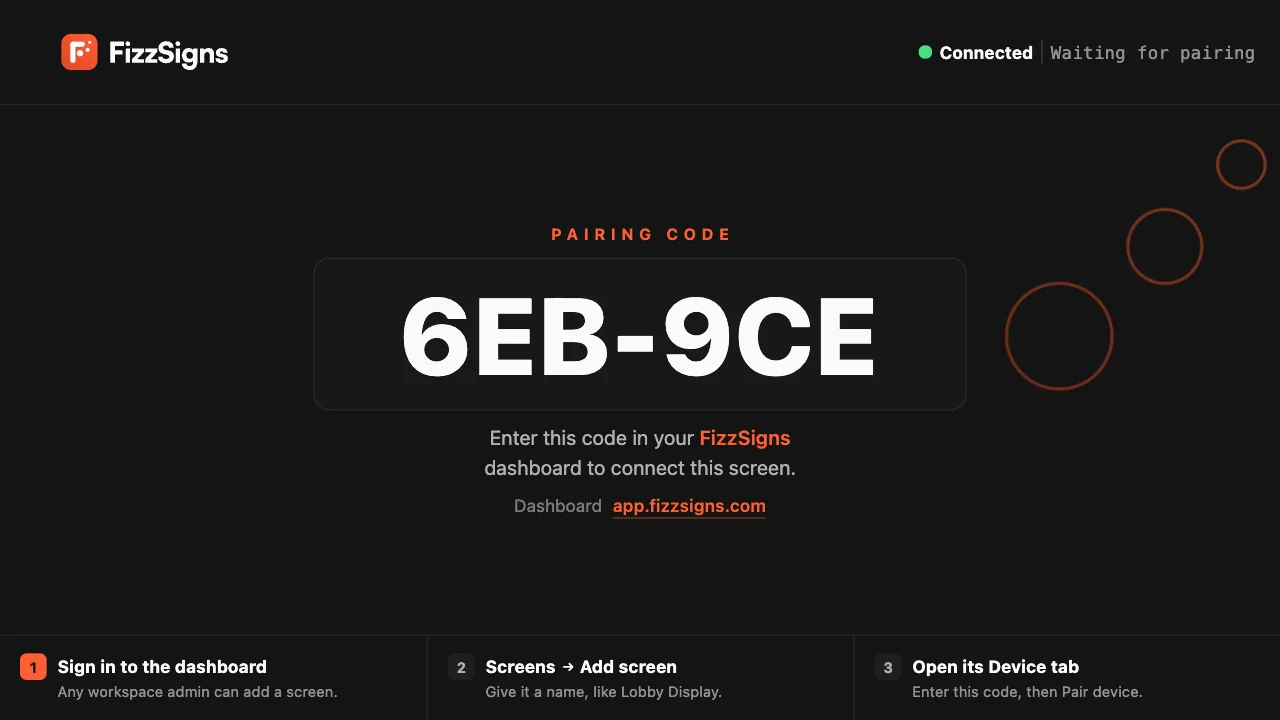
The Android app’s first start, captured on the Android TV emulator. 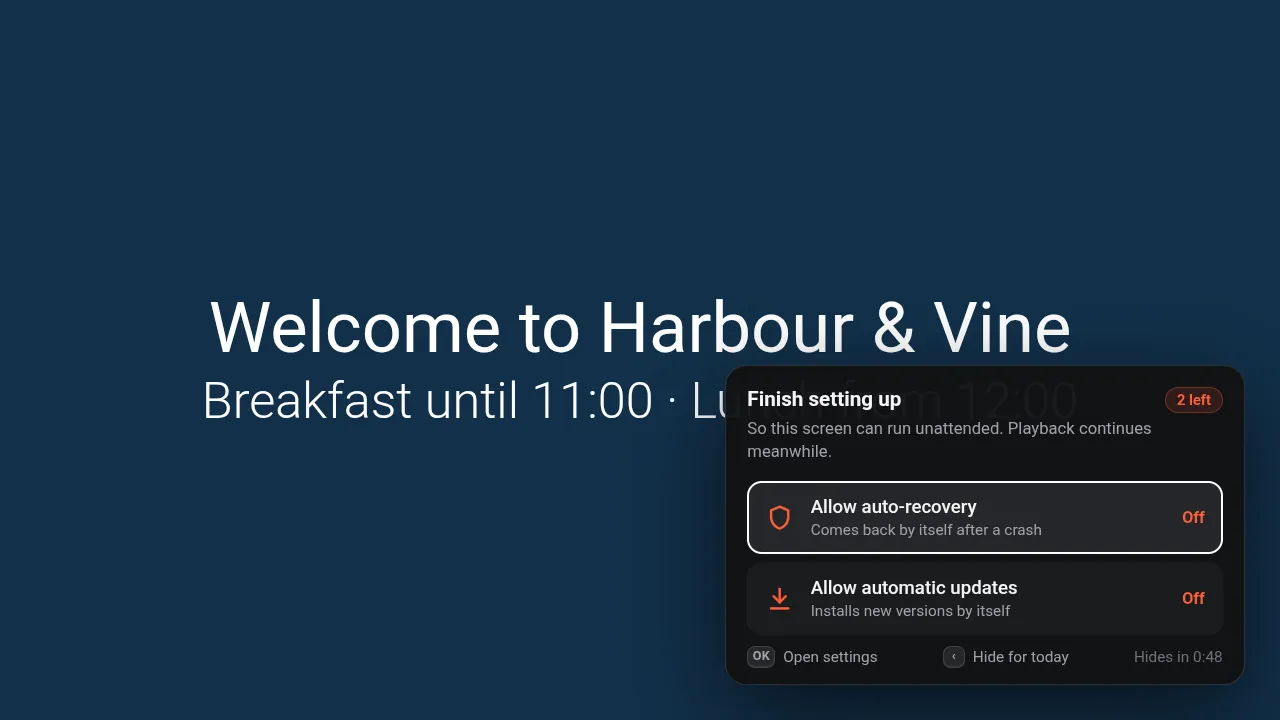
Paired and playing a demo organisation’s welcome message, while the app asks for its two switches: Allow auto-recovery and Allow automatic updates.
What the device needs
Most Android TV boxes sold today clear this easily. The ones worth avoiding are the cheapest: too little memory to play video smoothly all day, and no way to switch themselves back on after a power cut.
- Android 8.0 or newer
- 2 GB of RAM or more
- An HDMI output — or a screen of its own, on a display or tablet
- Wired ethernet if you can run the cable, 5 GHz Wi-Fi if you cannot
- Outbound HTTPS to the internet; no open ports, no VPN
- Automatic power-on after a power cut
Before you roll out a fleet
None of this matters for one screen on a trial. All of it matters on the twentieth.
Two switches, once per box
In the player's service menu, switch on Allow auto-recovery (under Recovery) and, on Android 12 and newer, Allow automatic updates (under Software update). Android lets only a person grant them. From then on the box starts, recovers and updates with nobody at the screen; without them, the dashboard tells you when a screen has an update waiting. Ask us and we will walk you through it.
Test one before you buy twenty
Holding the screen, autostart and silent installs all rely on parts of Android that manufacturers change. The 21-day trial is long enough to find out whether a model behaves — before it is on every wall.
One file for every screen
The same APK runs on every device, and each one pairs with its own code. Rolling out is: install it everywhere, then type each screen's code into the dashboard.
Android questions
Is the app on Google Play?
No. It is a signed APK you download from this site and install directly, once — after that it updates from our release channel, by itself once automatic updates are allowed in its service menu.
Will it run on a Fire TV Stick?
Fire TV runs its own version of Android and can install an APK, but we have not qualified one, so we do not promise it. For a single screen the trial will tell you quickly; for a fleet, buy an Android TV box.
Does a smart TV need a box?
Only if it cannot install an APK. A TV running Android TV or Google TV takes the app directly. A TV on Tizen or webOS cannot — put a small Android box behind it.
What happens when the internet goes down?
The screen keeps playing. The playlist, its media and its working hours live on the device, so an outage delays changes rather than blanking the screen. Apps that need a live connection step aside until it returns, and the screen catches up on its own.
Other ways to run a screen
- WindowsAn app for the PC behind the screen: full-screen, started with Windows, restarted if it freezes, and updated by itself.
- Mac (browser)A Mac mini or iMac as a signage player, with the four macOS settings that keep it running unattended.
- BrowserNothing to install: open the web player in any current browser, pair it, and it plays — offline too.
- What hardware to buyWhat to look for in a box or a display, and what is not worth paying for.
From the blog
- Android TV box for digital signage: what to buy and what to skipWhat an Android TV box for digital signage needs, what to skip, how the app holds the screen in kiosk mode, and how to test one before buying twenty.
- Smart TV digital signage: which TVs can run it on their ownWhich smart TVs run digital signage by themselves, when a Samsung or LG needs an Android box, and where a USB-stick slideshow stops being enough.
- Fire Stick digital signage: can a Fire TV Stick run your screen?Which Fire TV Sticks can install a signage app at all, what goes wrong on a screen nobody watches, and when an Android TV box is the better buy.
Three steps between a blank TV and a live one.
No server to run, no licence per seat, nothing to install on your network. A display, a power socket and an internet connection.