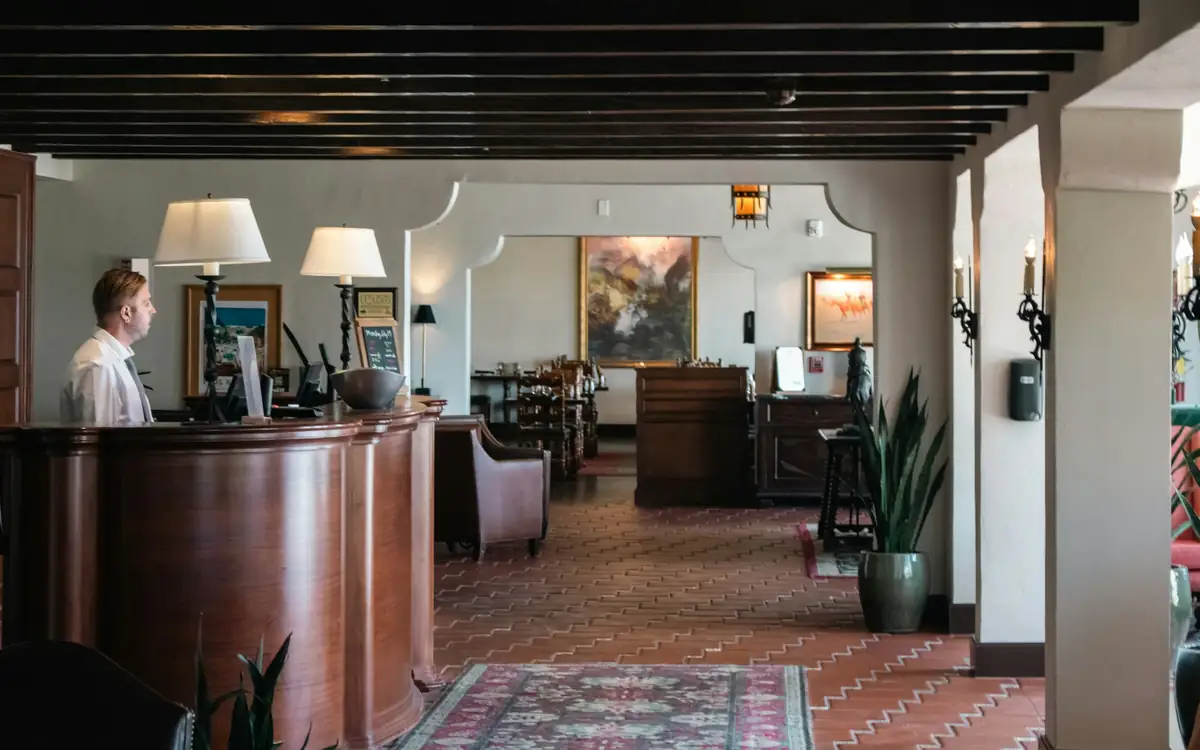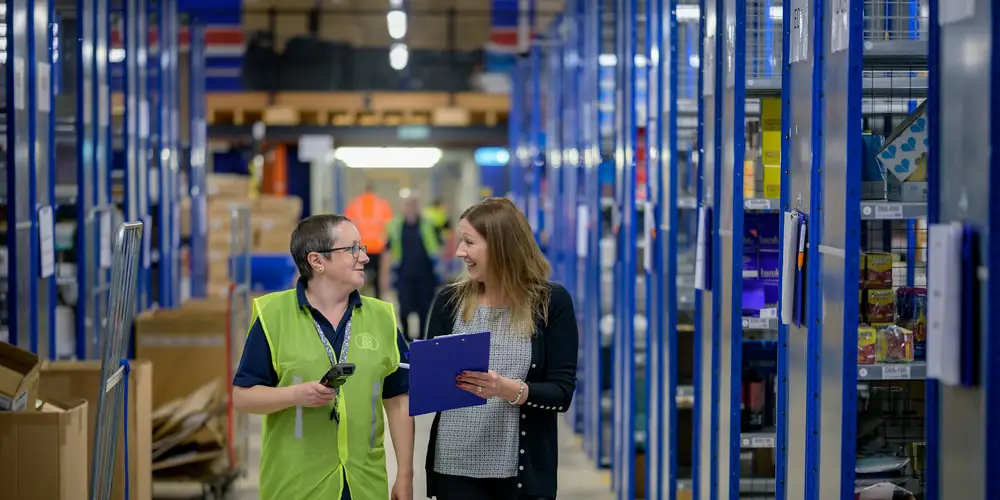
Internal communication screens are displays in the places staff pass during a shift, such as the break room, the time clock, the canteen queue or the loading bay. They show what everyone on that shift needs to know: the safety point of the week, the rota, today's targets, changes to the day and a word of thanks. For people who do not sit at a desk they are often the only channel that reaches everyone at once, because email and the intranet assume a desk and a login.
Whether a screen works has little to do with the screen. It depends on three things: one person owns it, the content changes often enough that people keep looking, and every item is short enough to read in the time someone actually stands in front of it.
Why screens reach staff that email does not
In a warehouse, a kitchen, a factory or the back room of a shop, the working day does not pass through an inbox. Phones may stay in lockers during the shift. Part-time and agency staff may have no company email at all. A notice pinned next to the time clock gets read once and then becomes part of the wall.
A screen in the right place reaches people who have no inbox and no phone in their pocket, and if someone looks after it, it does not fade into the wall the way the pinned notice does. It does not replace a shift briefing or a conversation with a team lead, and it is the wrong place for anything a person has to deal with privately, like a payslip question or a warning. It is the right place for what everyone on the floor should know today. If what you have in mind is closer to the office notice board, see digital bulletin board.
Where to put internal communication screens
Put them where people stop, not where they walk past carrying something:
- The break room. People sit for a while, so the screen can carry a longer loop.
- The time clock or the staff entrance. People pass in a few seconds. One message at a time, in large type.
- The canteen queue. A few minutes of standing still, facing the same way.
- By the lockers or the old paper rota. Where people already look for their hours.
Keep them out of forklift routes, and away from anywhere a person reading the screen would block a door or a walkway.
Size follows distance. A common rule of thumb is that the furthest reader should be no more than six screen heights away for large text, and four for anything read line by line, such as a rota. In practice that means 32 to 43 inches for two to three metres from a queue, and 43 to 55 inches across a break room. How to choose a screen size goes into more detail.
On a site that runs two or three shifts, the screen runs most of the day. A consumer TV is built for a few hours a day; a commercial display is rated for 12 to 24 hours. The difference is explained in commercial display vs TV. Where there is dust, heat or steam, choose the spot with more care than the model.
What to show on staff screens
Safety
- The one rule that matters this week, not the whole handbook
- Where the first-aid kit, the defibrillator and the assembly point are
- A "days since the last lost-time accident" board. The Countdown app can count up from a date, which is all that board is. When there is an accident, change the date; a counter that is never reset teaches people to ignore it.
For the moment something goes wrong, prepare messages in advance with the Emergency Alert app: evacuation, a spill, the site closing early. Choose the screens, save it and leave it switched off. One switch then covers the chosen screens within a second, including any outside their working hours, and the message stays up if the network drops. The alert is silent, so it backs up an alarm; it does not replace one.
Rotas, shifts and changes to the day
If the rota already lives in a Google Sheet, the Google Sheets app shows it as a clean table and picks up edits within about a minute. The sheet stays private in your Drive; you pick the file in Google's own picker, and that file is all FizzSigns can read. A few details decide how well it works:
- The app reads the first tab only: columns A to Z and the first 100 rows, with headings in row 1. Make the first tab the one built for the screen, showing this week only and first names only.
- A table too long to read at a good size is split into pages that turn on their own. Give the app a longer duration so each page stays up long enough.
- Colours and charts stay in the sheet. The app draws its own table from the values.
Overtime on offer, the deadline for holiday requests or a changed start time on Saturday are short text notices. The Text app draws them on the screen itself, so they keep playing without a network.
Targets and figures
Pick a few numbers the shift can actually move, such as lines picked, orders out or trucks loaded on time, and show team totals rather than names. A ranking of individuals on a wall reads as surveillance, however it was meant. How to put the numbers on screen, from a spreadsheet or from a BI dashboard, is covered in office TV dashboard.
Announcements
The new canteen supplier, work in the car park, a visit from head office on Thursday. Keep each one to a headline and two lines. For one-liners, the Ticker app runs a band of short messages along the bottom of the screen over everything else, so they do not take a slot in the rotation.
Recognition
Work anniversaries, a team that had a record week, a thank-you passed on from a customer. Use photos of people only with their agreement. It also gives people a reason to look at the screen on a day when nothing else has changed.
When the team speaks several languages
The screen shows whatever you type, in any language. For a mixed team, use fewer words, add pictograms and photos where they carry the meaning, and repeat the important items as separate slides in the team's main languages rather than cramming three languages onto one.
Who owns it, and how often it changes
A screen nobody owns goes stale quickly, and once people have seen the same slides for a few weeks, they tend to stop looking, even when something new appears.
One owner. HR, the site manager's office or an operations lead. They decide what goes up and they take things down.
Contributors with their own login. In FizzSigns you invite people by email with a role. An Admin manages people and settings, a Member can change screens, playlists and media, and a Viewer can see everything and change nothing. Roles cover the whole organisation, and there is no approval step before something goes live, so agree who posts what. A simple arrangement: the owner as Admin, shift leads as Members.
A fixed rhythm. For example:
- Monday morning: the rota, the week's targets and the safety point
- Thursday: clear out what has expired
- Anything urgent: whenever it happens
FizzSigns does not take an individual notice down on a date by itself, so put the end date in each item's name and it will stand out in the list when it has expired. Switch items off rather than deleting them. A disabled item leaves the screens within seconds and stays in the playlist for next year's summer-heat reminder.
Different loops for different places. At the time clock, two or three items. In the break room, ten is fine, because people sit. Give each place its own playlist; a notice made once in the Text app can sit in both.
Keeping it trustworthy
- Nothing out of date. A notice for last week's event tells people the screen does not matter.
- Check that it is on. Each player reports a heartbeat every 30 seconds, and the dashboard shows every screen's live status, when it last checked in and which player version it runs. A dark screen in the dispatch area shows up before someone mentions it.
- Proof that it ran. Playback reports show what played, per screen and across the site, with a coverage view by hour and day and a PDF export. That answers whether the new procedure was actually on screen during the night shift.
- Patchy Wi-Fi. The signal at the far end of a warehouse may be weak. The player keeps its playlist and media on the device and keeps playing offline. Text, PDFs and uploaded media need no network, and a Google Sheet keeps its last figures. Apps that need the network at play time, such as a web page or a YouTube video, are skipped until the connection returns. Use a network cable where you can.
- Working hours. A site that closes at night can put its screens into standby outside working hours; they show black and start again on time. A site that runs around the clock leaves them always on.
What hardware does a staff screen need?
A display with an HDMI input and something to run the player. An Android TV box with Android 8 or newer and 2 GB of RAM or more is the simplest choice. Once auto-recovery is switched on in its service menu, the player starts at boot and is restarted if it stops, and with a box that powers on by itself after a power cut, the screen comes back without anyone touching it. A box that does the job typically costs somewhere between €40 and €120. A PC with a current browser in full-screen works too. Samsung and LG smart TVs have no FizzSigns app, so pair them with a box. The hardware page lists what is worth paying for.
Where to start
Put one screen in the break room. Start with three items: the safety point of the week, the rota and one announcement. Name the owner and the day of the week they update it. After two weeks, ask a few people on each shift what they remember from it, and change what nobody mentions.
The FizzSigns trial runs for 21 days with every feature, on up to 3 screens, and needs no card, which is enough time for that two-week test.