Google Sheets app for digital signage
Put a Google Sheet on the wall
What it does
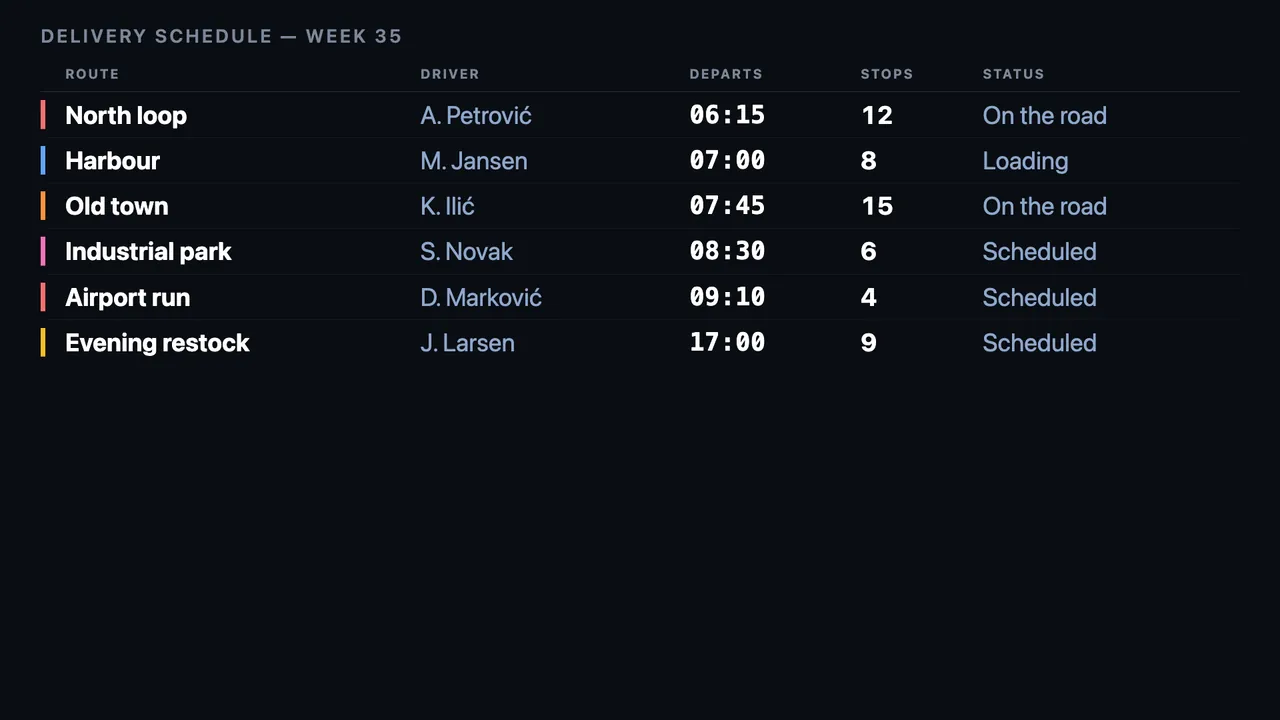
Turn a Google Sheet into a clean on-screen table. Connect your Google account and pick the spreadsheet in Google's own file picker: FizzSigns can read that one file and nothing else. It shows the first tab, with row 1 as the headings, in a light or dark style, and a long table turns its pages on its own. Edit the sheet and the screen follows within about a minute, so sales figures, targets and rotas stay current in offices and staff rooms.
Every app in the catalogue is part of the plan. There is no app store, no per-app charge and nothing held back for a higher tier.
How to show a Google Sheet on a TV
Pick a spreadsheet from your Google Drive and the screen shows it as a clean table — sales figures, rotas, price lists. Edit the sheet in Google Sheets and the screen follows on its own.
- 01
Add the app
In the dashboard, open Apps and add Google Sheets.
- 02
Connect Google
Under Google account, sign in once. FizzSigns asks for access only to the files you pick, not to your whole Drive.
- 03
Pick the spreadsheet
Under Spreadsheet, choose Choose from Google Drive and pick the file in Google's own file picker. That one spreadsheet is all FizzSigns is allowed to read.
- 04
Choose the look
Turn off Show the header row to start straight at the first item — handy for a menu or a price list. Row 1 is still treated as headings, never shown as data. Pick Light or Dark under Theme.
- 05
Put it on a screen
Add the app to a playlist, give it a duration and publish it to the screen.
Good to know
Edits appear on their own
The app checks the sheet every minute, so a change made in Google Sheets reaches the screen without anyone touching it.
What it reads
Columns A to Z and the first 100 rows of the spreadsheet's first tab. Anything beyond that is not shown.
Keeps its last copy offline
If the network drops, the screen keeps showing the figures it last received instead of going blank.
Questions about this app
Does the spreadsheet have to be public?
No. It stays private in your Drive; the picker grants access to that one file only.
Will my sheet's colours and charts appear?
No. The app reads the cell values and draws its own table, so colours, charts and images stay in the sheet. Numbers keep the format they have there, such as currency or percentages.
What if the table is too long for the screen?
Rows that do not fit at a readable size are split into pages, which turn on their own while the app is on screen. A longer duration gives each page more time.
From the blog
- Raspberry Pi digital signage: when it is worth the effortWhen a Raspberry Pi makes sense for signage, what it costs in time (power, SD cards, heat, updates) and how it compares with an Android box.
- Office TV dashboard: how to put your KPIs on a wall screenTwo ways to put KPIs on an office TV: a live table from Google Sheets, or a dashboard's public link. What works, what shows blank, and why.
- Gym digital signage ideas: what to show, where, and who runs itWhat to put on gym screens at reception and on the floor: class timetables, challenges, countdowns and offers, plus working hours and hardware that lasts.
Something for every kind of screen.
Install what you need and ignore the rest. Nothing here is an add-on you pay extra for.