Google Calendar app for digital signage
Show upcoming events from a Google Calendar
What it does
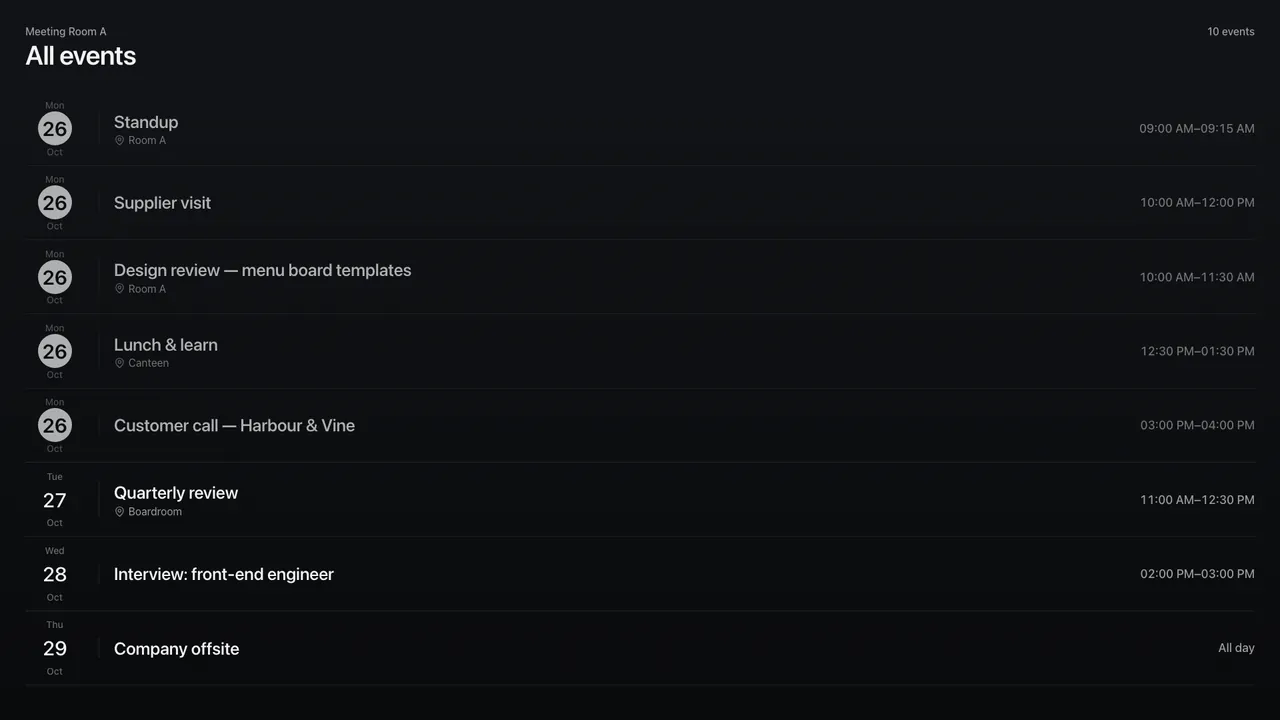
See what's coming up straight from a Google Calendar, laid out as a day, week, month or rolling schedule. Connect your Google account, choose the calendar to show, and set options like upcoming-only, gentle auto-scroll for long lists, and the on-screen language. FizzSigns only reads the calendar, never changes it — perfect outside meeting rooms, in reception areas and staff spaces.
Every app in the catalogue is part of the plan. There is no app store, no per-app charge and nothing held back for a higher tier.
How to show a Google Calendar on a TV
Connect a Google account once, pick a calendar, and the screen shows its events — on a meeting-room door, in a lobby or in a staff room. FizzSigns only reads the calendar; it never changes it.
- 01
Add the app
In the dashboard, open Apps and add Google Calendar.
- 02
Connect Google
Under Google account, sign in once and allow read access. FizzSigns asks only to read calendars and their events.
- 03
Pick the calendar
Start typing its name under Calendar and choose it from the list. Shared and team calendars appear here too, once they are shared with the account you connected.
- 04
Choose the view
Day, Week, Month or Schedule. Schedule is the list most lobbies use: turn on Only show upcoming events so finished meetings drop off, and Auto scroll when there are more events than fit.
- 05
Put it on a screen
Pick Light or Dark to suit the room and the language dates are shown in, then add the app to a playlist and publish it to the screen.
Good to know
Read-only by design
The connection can read calendars and their events, and nothing else. It cannot create, move or delete a meeting.
Changes arrive on their own
New, moved and cancelled events reach the screen without anyone touching it — the app checks the calendar every few minutes.
Keeps its last copy offline
If the network drops, the screen keeps showing the events it last fetched instead of going blank.
Questions about this app
Can I show several calendars on one screen?
One calendar per app. Add the app once for each calendar and split the screen with the Zones app to show two rooms side by side.
Will private meeting details appear on the screen?
The screen shows what the connected account can see in that calendar. For a public screen, share only free/busy information with that account, and meetings appear as busy without their details.
Can people book a room from the screen?
No. The screen shows the calendar; bookings are made in Google Calendar as usual and appear on the screen on their own.
From the blog
- Meeting room display: show a room's Google Calendar by the doorPut a room's bookings on a screen by the door with Google Calendar: read-only, details hidden when you want, and two rooms on one screen.
- Gym digital signage ideas: what to show, where, and who runs itWhat to put on gym screens at reception and on the floor: class timetables, challenges, countdowns and offers, plus working hours and hardware that lasts.
- What hotel digital signage should show: lobby, meetings, restaurant and liftsLobby, meeting floor, restaurant and lifts: what hotel screens should show, how to reach guests in several languages, and what each screen costs.
Something for every kind of screen.
Install what you need and ignore the rest. Nothing here is an add-on you pay extra for.